
As part of our ongoing efforts to improve the user experience, we have implemented a new feature – Mega Menu. This advanced navigation bar makes it possible to efficiently display more information and links directly in the main menu, which simplifies navigation on the website and speeds up access to important subpages.
What can Mega Menu do?
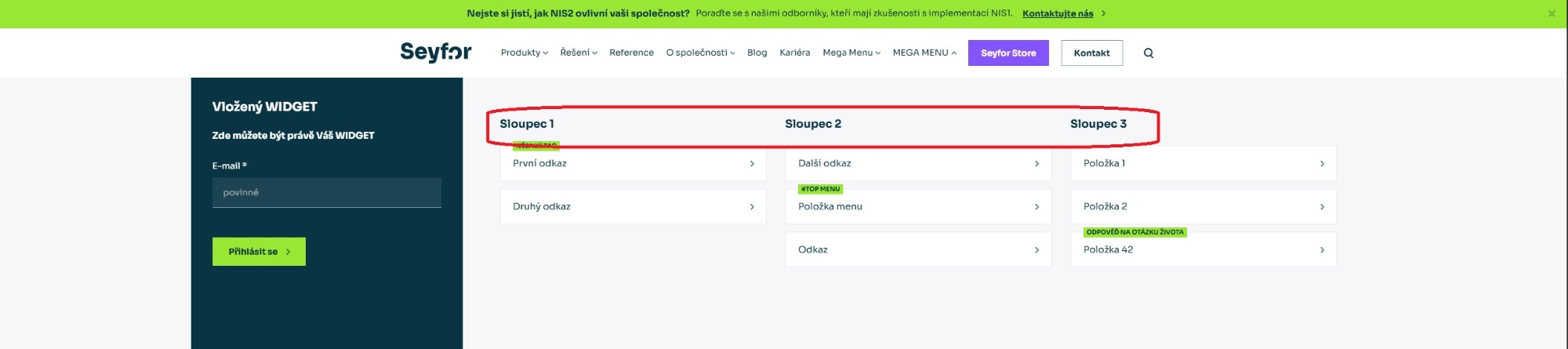
- Multi-column layout: Allows content to be divided into several columns, improving clarity and the organization of information.
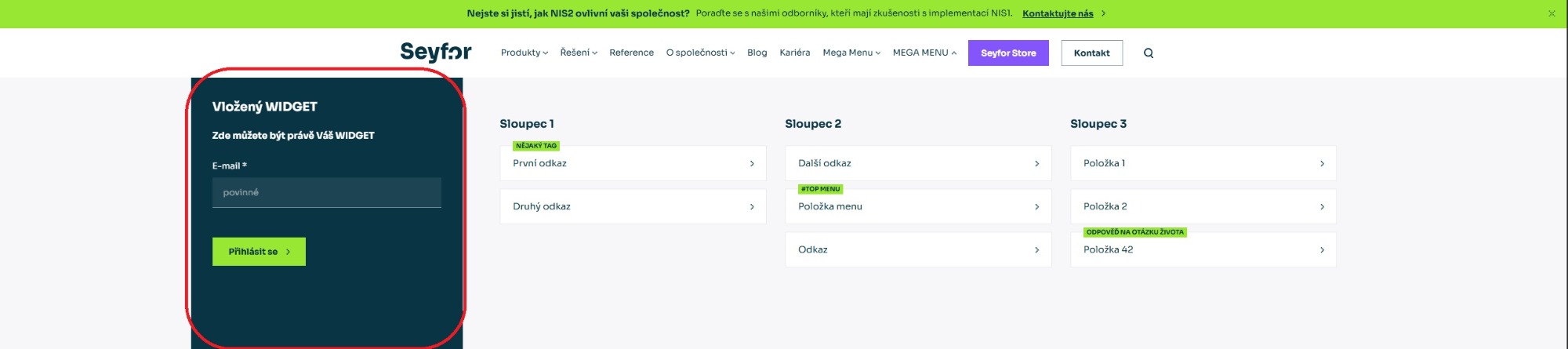
- Widgets in the menu: A widget can be added to the menu, providing another opportunity to guide the user to their destination faster.
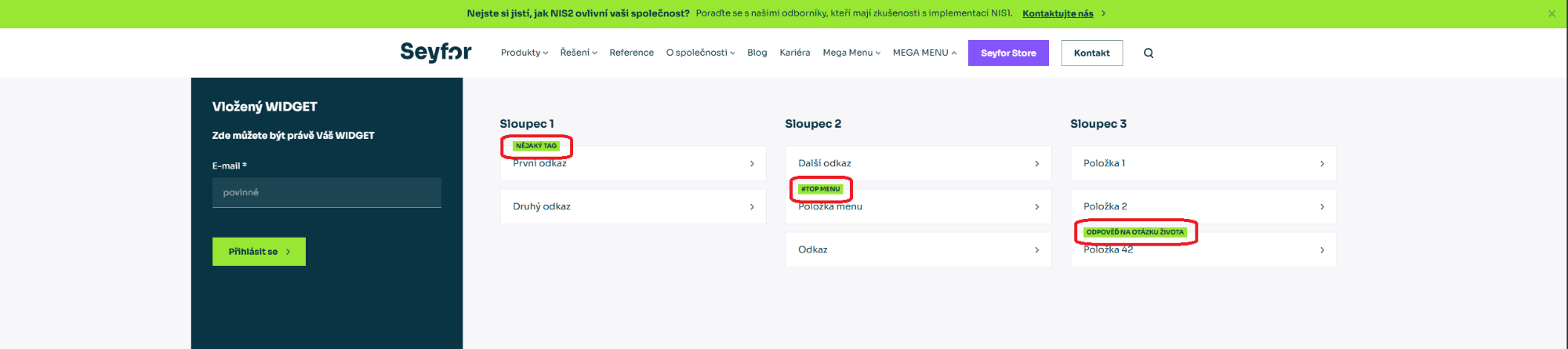
- Tags for items: Each menu item can be labeled with a tag, making it easier to identify.
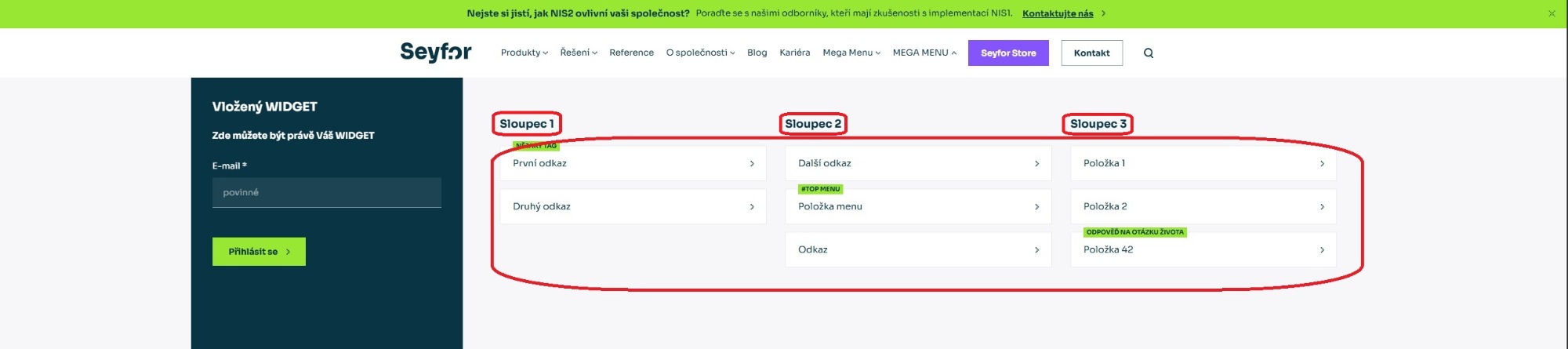
- Links to subpages: Items within the columns as well as the column headings themselves can link directly to specific subpages. This speeds up navigation and improves the user experience.
Widget
Only one widget can be inserted. If you create multiple widgets, only the first one will be displayed.
Creating a widget – first, you need to create a Widget item in the Mega Menu, then open it again and select the specific widget that should be displayed.
Where can you find Mega Menu?
-
Start in the menu:
-
Go to Menu → Main menu.
-
Click Add menu item.
-
Set the type to Mega Menu.
-
-
Creating the Mega Menu structure:
-
In this newly created Mega Menu item, add a nested element (click the + next to the item).
-
For the nested element, choose the type:
-
Widget or
-
Column description.
-
-
-
If you choose Widget:
-
First, you need to create the widget
-
Then open the newly created widget item again and set which specific widget should be displayed.
-
-
If you choose Column description:
- In that column, add another nested element again (+ next to the newly created column).
-
This will specifically link to the subpage where you want to direct the user.
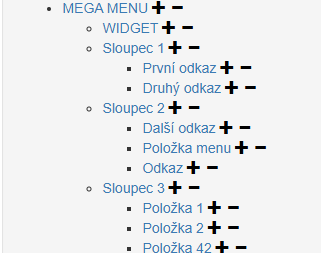 Main menu → Mega Menu → (column/widget) → (link/specific widget).