
In order to create content published only for a specific group of users, a new "Access Restriction" function has been created for this purpose within the Pages and Downloads module. We will demonstrate the application of this feature with the case of creating a Partner Zone for OneCore, which can only be accessed by specified users, but the possibilities of use are unlimited.
Description of the Partner Zone
- This is a set of content pages that are only visible to logged in users
- The Partner Zone (PZ) consists of the following pages:
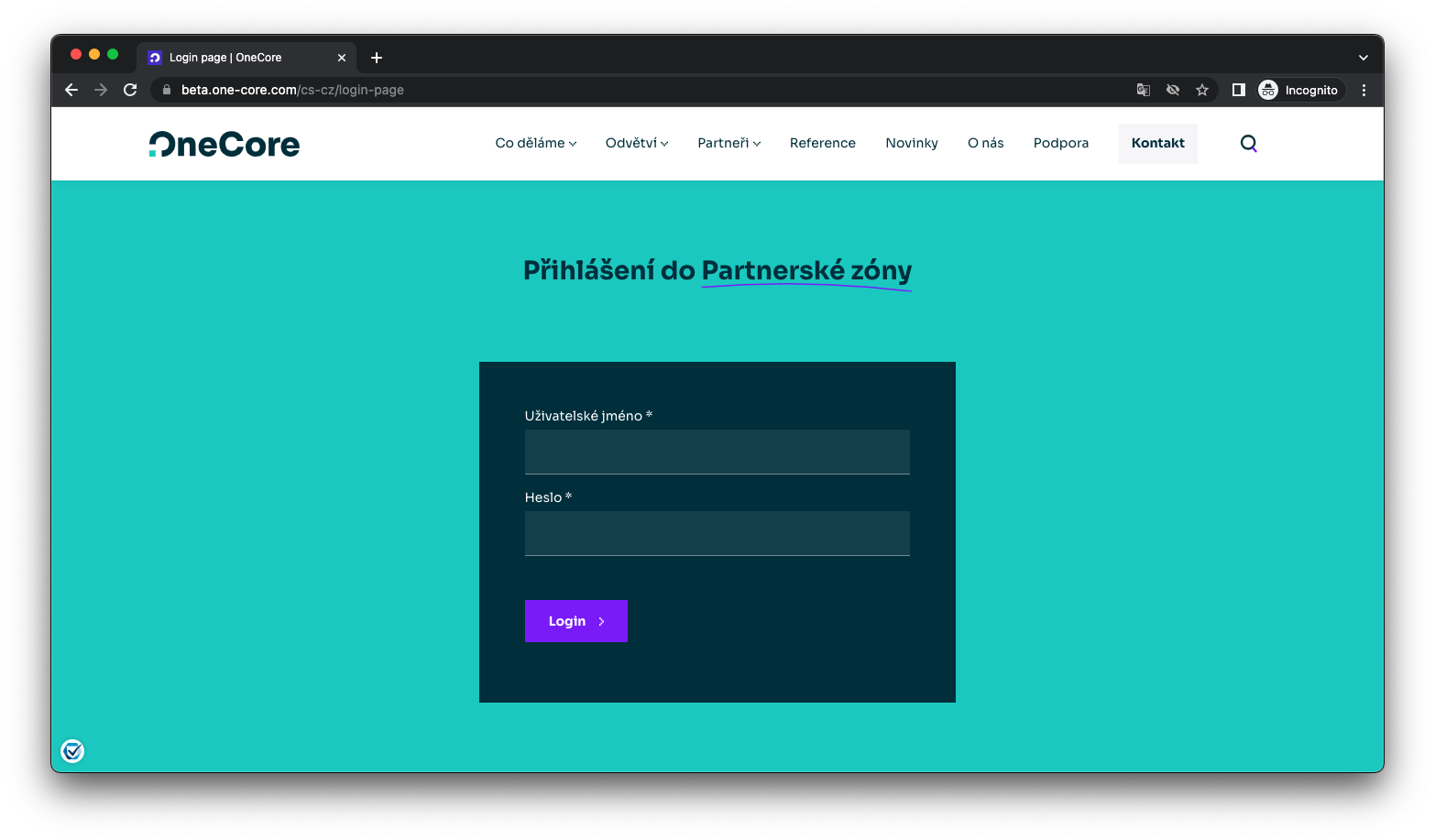
- Login page - visible when accessing the URL of a site that has restricted access set.
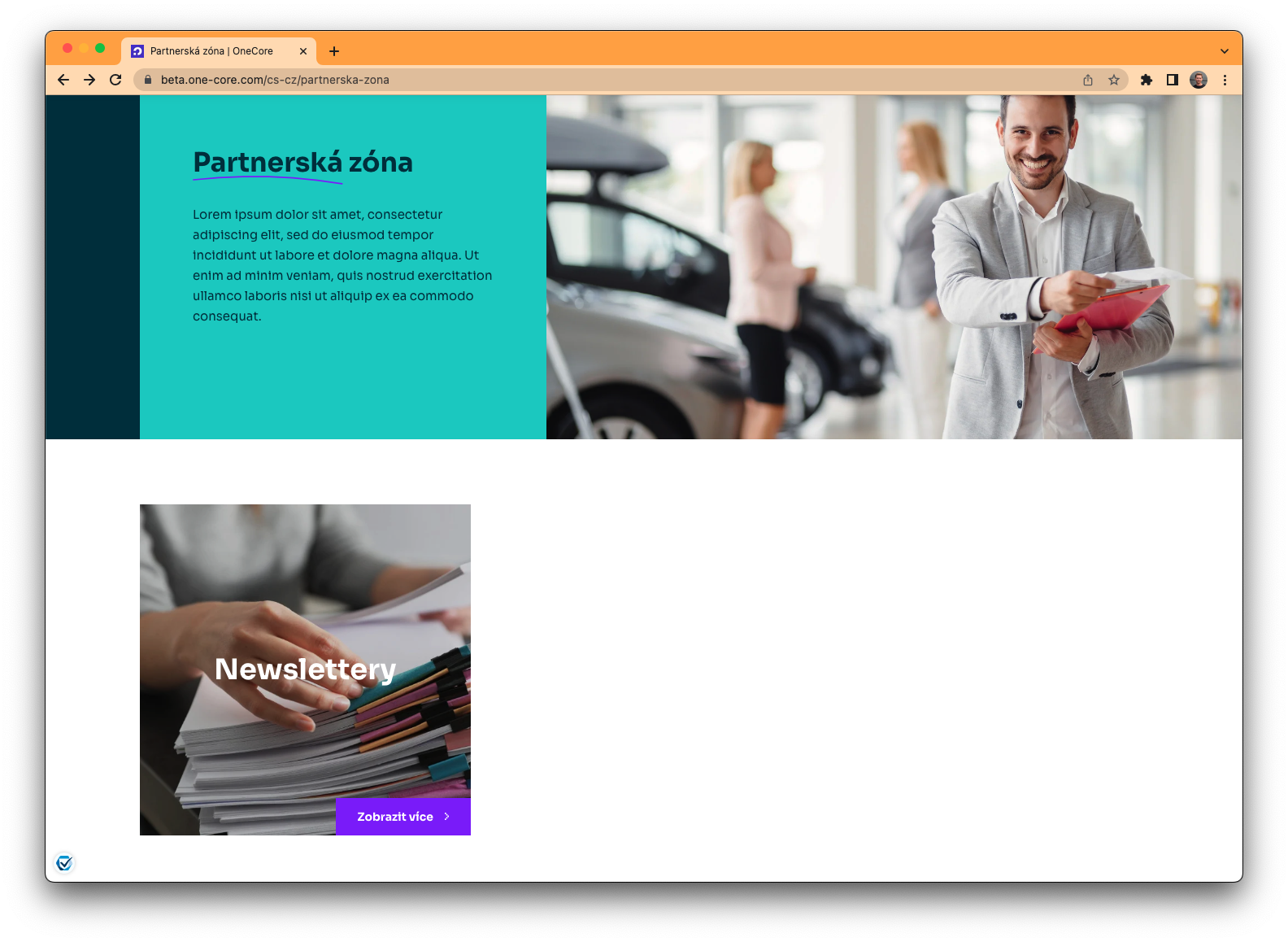
- Partner Zone home page
- Other Content pages
- Access to the PZ can be managed in the Users module
- User activity is logged and can be viewed and exported in the Statistics module
Access management
- Access to the PZ (or access to hidden content in general) is managed in the same module as access to the site administration
- When adding a new PZ user, the procedure is as follows:
- Go to the "Users" module.
- Click on Create User
- Fill in the fields Username, Password (now with the option to generate a password via "Generate password"), Role - add the role "IZ Role" for the PZ user
- without this defined role the content of the partner zone will not be displayed
- for administration users, who should also have the right to manage PZ users, the role "IZ User Manager" is prepared
Content management
- All pages of the internal zone are managed in the "Pages" module.
- When creating each new PZ page, it is necessary to set the access restriction to only logged-in users

- Check "Allow only logged-in users"
- Define the "IZ Role"
- The content of the PZ is edited using standard blocks as for other pages, you just need to select the template "Builder page (duplo)" when creating the page
- When creating a new page you need to think about breadcrumb navigation
- in SEO & URL > Manage breadcrumb navigation, a tree structure is prepared to provide breadcrumb navigation functionality
- Simply add the item linked to the new page object to the Partner Zone branch, or to a deeper level

- When creating a new breadcrumb navigation item, just select the linked object, the title will be overwritten automatically from the Page object.
Manage downloads
- Downloads must be created in Downloads > Create Download
- It is possible to categorize and manage the categories (Downloads > Categories)
- When creating a downloadable file in the PZ, the "Publicly Available" option must be unchecked and the "IZ Role" role must be set to enabled to protect the file from being downloaded via a direct link.
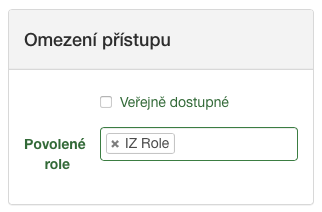
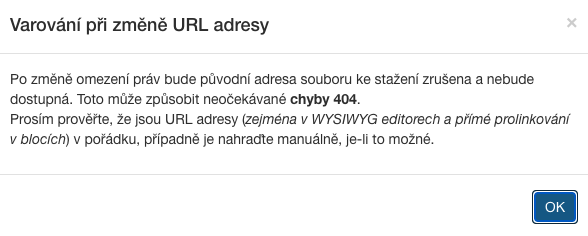
- This setting can also be done for existing files, but this action is not recommended as it moves the file to another folder on the server and historical links to the file from the site content may no longer work.
- To be on the safe side, a warning has been provided when editing access restrictions for existing downloads:
Page previews
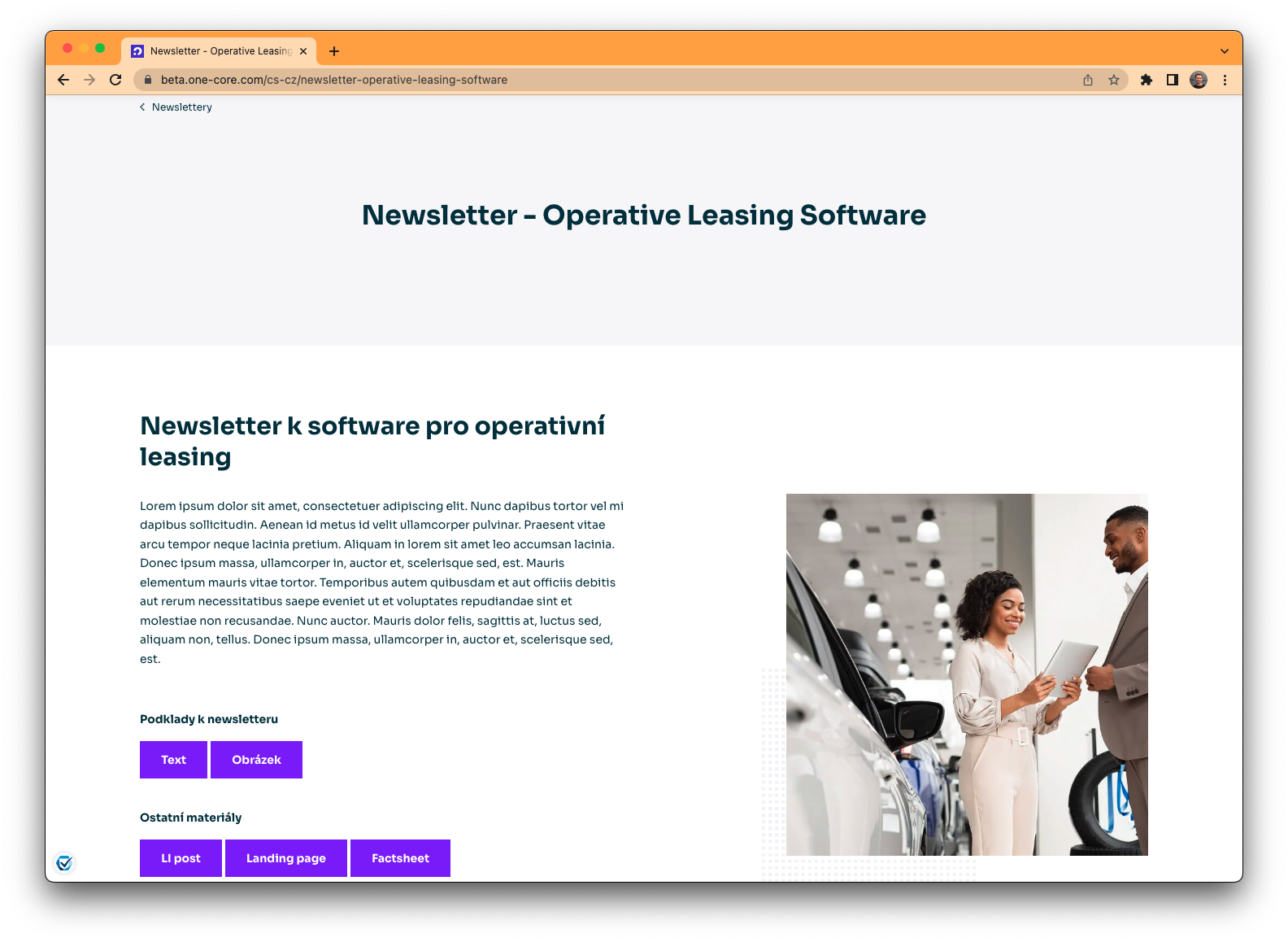
For inspiration, we attach the PZ previews from the OneCore website. All content is created using blocks (standard Seyfor components are used).
Login page
Partner zone homepage
Partner zone category
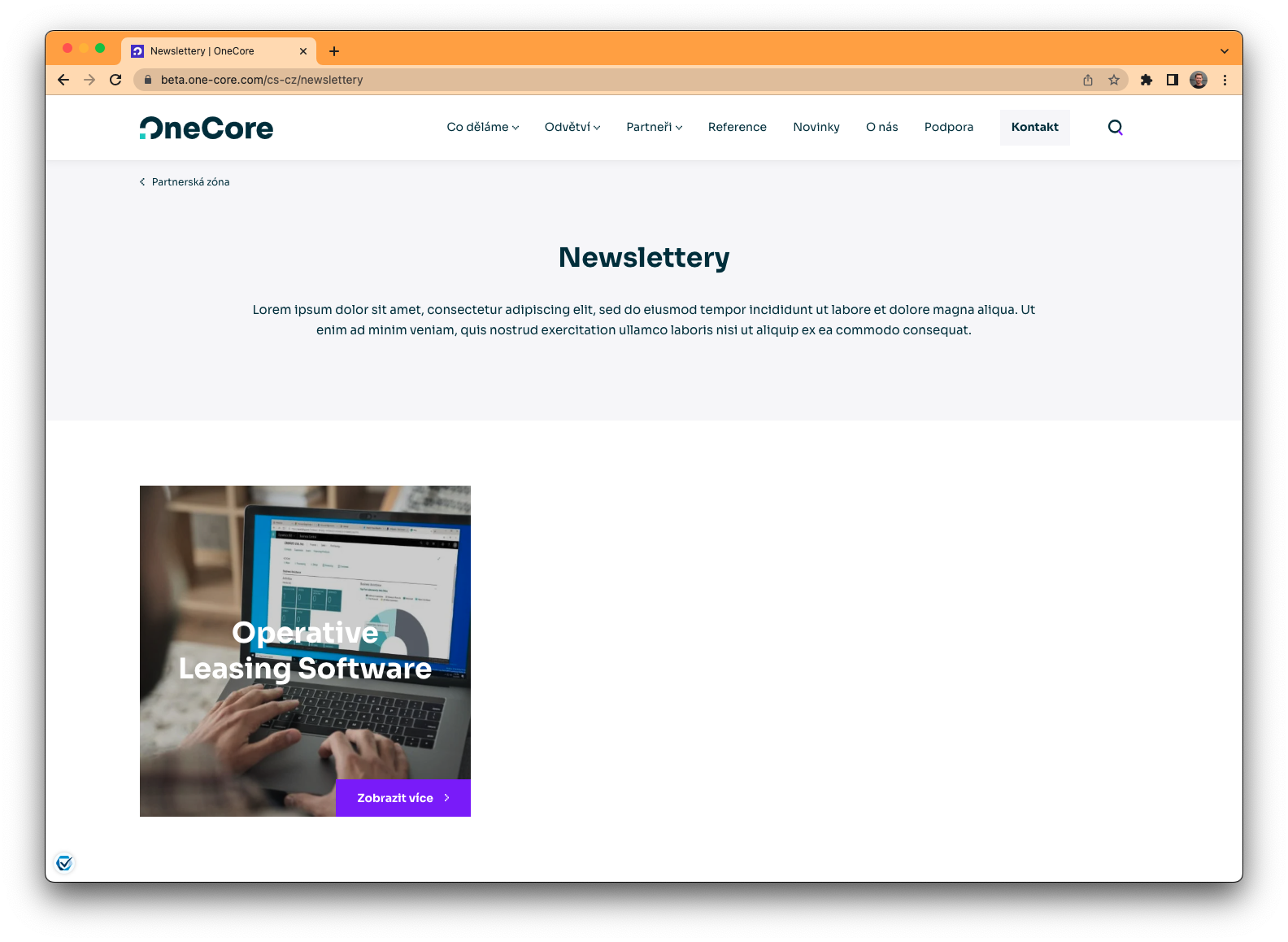
PZ content page detail
Logging user activity
To ensure tracking and for the purpose of evaluating user activity, a function has been prepared to record (log) the actions performed.
- The following types of user events (activities) are logged:
- Page views
- File download
- Submitting a form
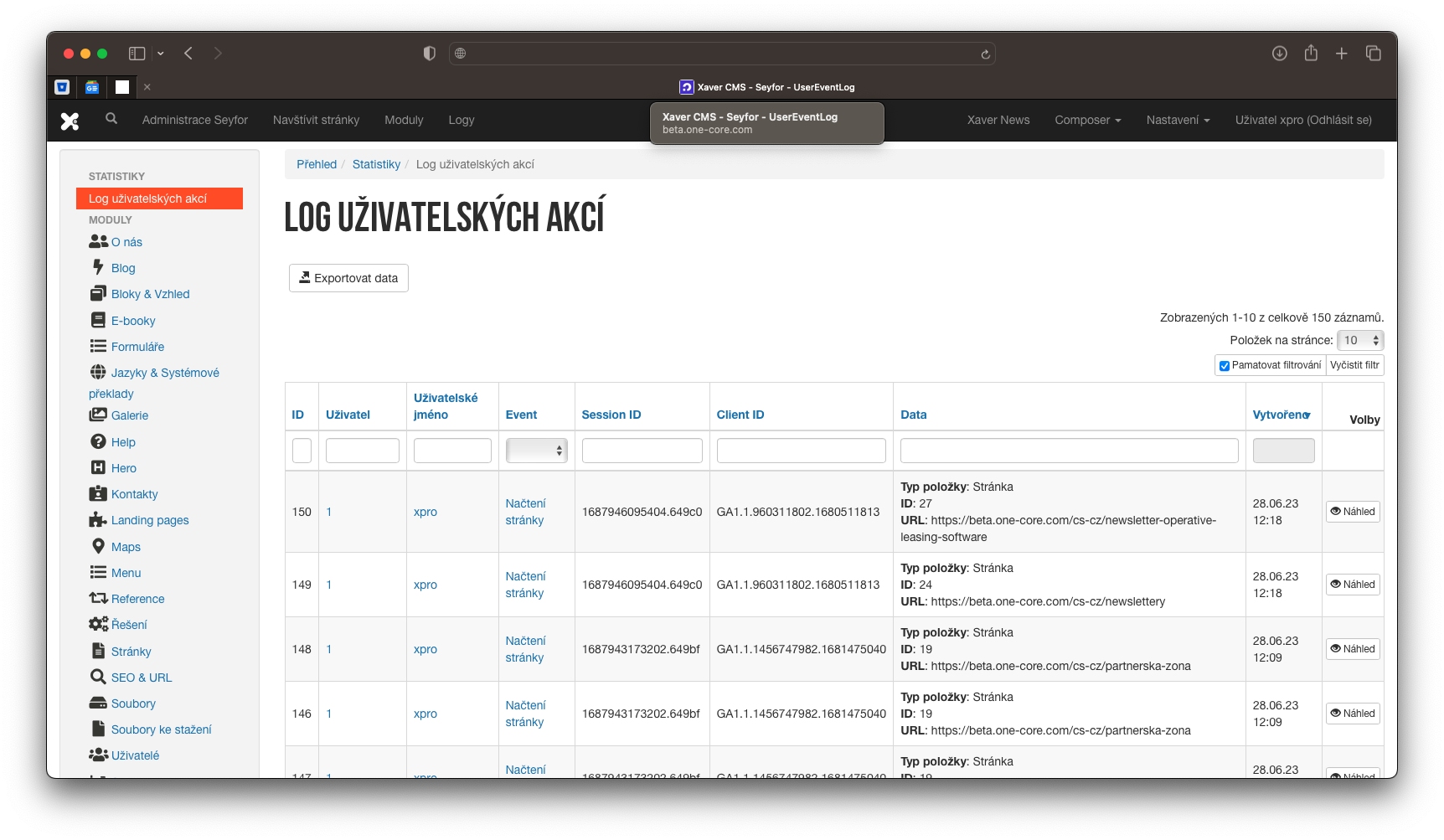
- Activity logs are available in the Statistics module
- Each log contains a timestamp, event type, and detailed information about the user and the content viewed/downloaded
- User events can be filtered in the online report, or exported and then processed in an XLSX file (Excel)
Logs preview
Update availability
The update is available for all sites with the Seyfor design. Starting July 10, 2023, we will begin updating the xpage module on individual sites to version 4.3, which includes a new feature.